Add a Routing Server
A Routing Server can be added to the ARM for handling calls coming from SBCs and Gateways.
| ➢ | To add a Routing Server to the ARM: |
| 1. | Open the Routing Servers page (Settings > Routing Servers). |

| 2. | Click the add icon +. |
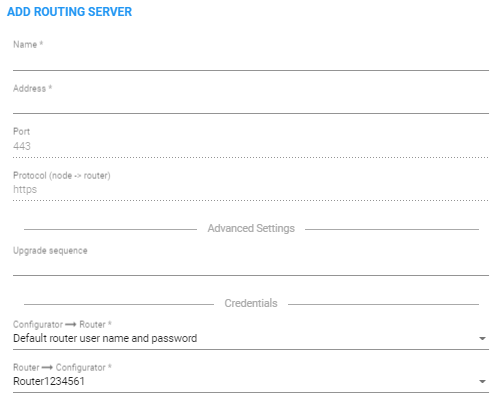
Adding a Routing Server without adding it to a Routing Server Group will have no effect as Routing Servers are as of ARM Version 8.6 not attached directly to nodes (see under Adding a Routing Servers Group with Internal and External Priorities).
| 3. | Configure the routing server using the following table as reference. |
Routing Server Details
| Setting | Description | |||||||||||||||
|---|---|---|---|---|---|---|---|---|---|---|---|---|---|---|---|---|
|
Name |
Enter a name for the ARM Router (routing server). |
|||||||||||||||
|
Address |
Enter the IP address or host name for the ARM Router (routing server). |
|||||||||||||||
|
Port |
[Read only] ARM Router (routing server) port number. Default: 443 |
|||||||||||||||
|
Protocol |
[Read only] HTTPS |
|||||||||||||||
|
Upgrade Sequence |
Network operators can group ARM Routers so that multiple ARM Routers can be upgraded simultaneously, reducing the time required for ARM software upgrade. It is the network operator’s responsibility to group ARM Routers in a way that no service outage will occur. By default, the ARM Routers undergo upgrade one by one. This is the preferred way for customers with 2-6 ARM Routers to upgrade.
The feature is recommended only if you have a high number of Routing Servers in your deployment. |
|||||||||||||||
|
Credentials |
Allows you to specify the credentials which the Configurator will use to communicate with the router and vice versa. |